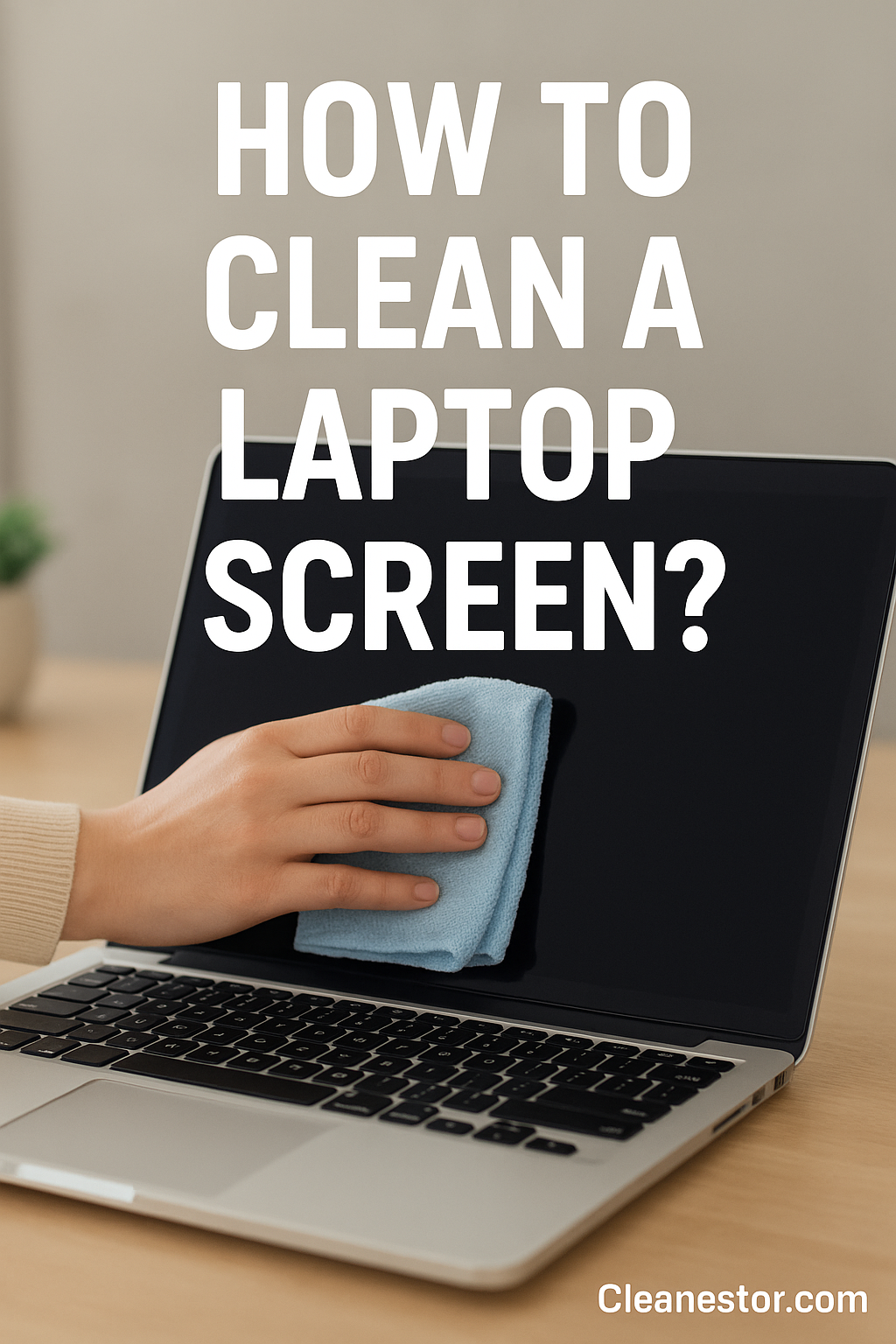
Your laptop screen is the window to your digital world. Whether you’re working, streaming, or gaming, a clean screen makes a massive difference. Dust, fingerprints, and smudges not only ruin your viewing experience but can also harm the display in the long run. Cleaning a laptop screen might sound simple, but doing it wrong can cause scratches, dead pixels, or even permanent damage. That’s where Cleanestor comes in. At Cleanestor, we specialize in professional cleaning advice and services. From delicate laptop screens to industrial equipment, our mission is to keep your devices spotless and safe.
In this guide, we’ll walk you through how to clean a laptop screen step by step, what tools to use, what mistakes to avoid, and some pro tips you won’t find elsewhere.
Why Cleaning a Laptop Screen Matters
Before we jump into the “how,” let’s answer the “why.”
-
Improved Visibility: Dust and smudges reduce clarity, making it harder to read text or watch videos.
-
Eye Health: Straining your eyes through a dirty screen can cause fatigue.
-
Device Longevity: Regular cleaning prevents dust from entering corners and damaging internal parts.
-
Professional Appearance: A clean laptop looks more presentable, especially in meetings.
Fun fact: According to a study by the University of Arizona, laptop keyboards and screens can harbor 400 times more bacteria than a toilet seat. That alone is reason enough to clean regularly.
What You Should Never Use on a Laptop Screen
Many people damage their screens because they use the wrong cleaning methods. Here’s what to avoid:
-
❌ Paper towels or tissues – They scratch the screen surface.
-
❌ Window/glass cleaners with ammonia – They strip away protective coatings.
-
❌ Excess water – Can seep into the screen edges and cause internal damage.
-
❌ Harsh chemicals (bleach, alcohol >70%) – They discolor or cloud the display.
Cleanestor experts recommend specialized microfiber cloths and gentle cleaning solutions designed for electronics.
Tools You’ll Need
Before you start, gather the right tools. You don’t need fancy gear—just safe and effective items:
-
Microfiber cloth (lint-free, anti-static)
-
Distilled water (tap water may leave mineral spots)
-
50/50 solution of distilled water + white vinegar OR isopropyl alcohol (≤70%)
-
Screen cleaning spray (optional, branded cleaning solutions work well)
At Cleanestor, we always suggest using a dedicated screen cleaner kit because it minimizes risk and keeps the process easy.
Step-by-Step: How To Clean a Laptop Screen Safely
Step 1: Turn Off and Unplug Your Laptop
Always shut down your laptop before cleaning. This reduces the risk of electric shock and makes smudges more visible.
Step 2: Wipe Dust with a Dry Microfiber Cloth
Gently move the cloth in circular motions. Never press hard—it can damage pixels.
Step 3: Prepare a Cleaning Solution
Mix equal parts distilled water and white vinegar or distilled water with 70% isopropyl alcohol. Alternatively, use a pre-made screen cleaner.
Step 4: Apply Solution to Cloth (Never Directly on Screen)
Spray the cloth lightly. If the cloth is too wet, wring it out until damp.
Step 5: Wipe the Screen Gently
Move in small circles or consistent vertical strokes. Repeat until smudges are gone.
Step 6: Let It Dry Before Turning On
Wait at least 5 minutes to ensure no moisture remains.
Pro Tips from Cleanestor Experts
-
Use compressed air to blow dust out of corners.
-
Keep a separate microfiber cloth only for your screen to avoid oil transfer.
-
Clean your screen once a week if you use your laptop daily.
-
If you notice streaks, polish gently with a dry microfiber cloth.
Deep Cleaning & Disinfecting Your Laptop Screen
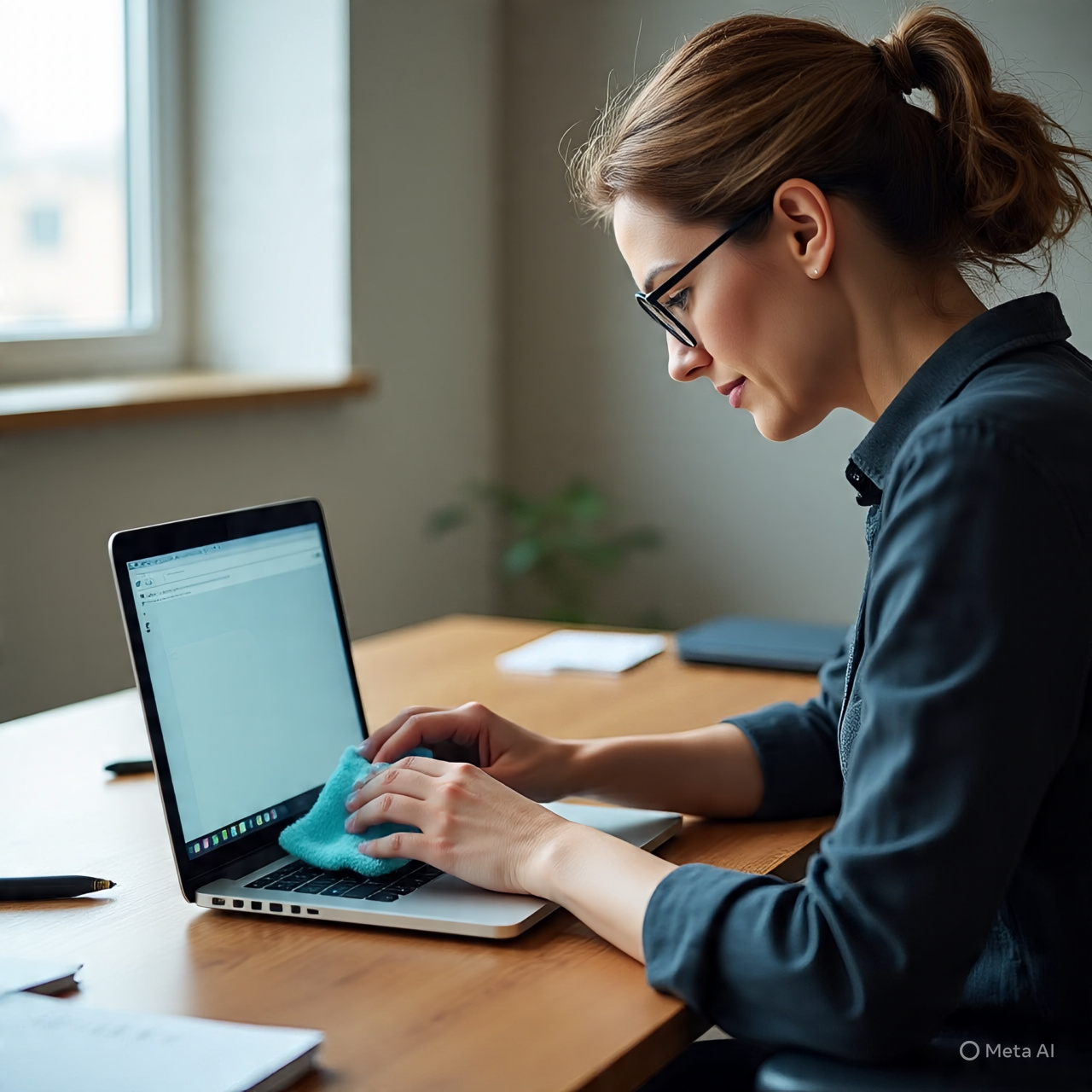
Sometimes dusting isn’t enough. After months of use, laptop screens accumulate oils, fingerprints, and even bacteria. Here’s how to deep clean safely.
Step 1: Sanitize with a Safe Solution
According to a 2021 Harvard Medical School study, electronics can spread bacteria if not disinfected regularly. That’s why disinfecting is as important as dust removal.
The safest disinfectant is a 70% isopropyl alcohol solution mixed with distilled water. This concentration is effective against bacteria and viruses, but gentle enough not to damage the screen’s coating.
At Cleanestor.com, our pro cleaning team uses certified screen-safe disinfectants to guarantee safety without streaks.
Step 2: Use Pre-Moistened Wipes (Optional)
If you’re always on the go, screen-safe disinfecting wipes are a handy option. Make sure they’re labeled for electronics—avoid regular household wipes like Clorox unless explicitly safe for screens.
Step 3: Polish for Streak-Free Finish
After disinfecting, finish with a dry microfiber cloth. Gently buff the screen to remove streaks and restore brightness.
Cleaning Different Types of Laptop Screens
Not all screens are created equal. Each type requires slightly different care.
LCD Screens
-
Use minimal liquid. LCDs are more sensitive to water damage.
-
Always use vinegar + water or a dedicated LCD cleaner.
-
Never press hard—LCD pixels are fragile.
LED Screens
-
Similar to LCD, but slightly more durable.
-
Use isopropyl alcohol mix for fingerprints.
-
LED screens usually have anti-glare coating, so avoid harsh cleaners.
Touchscreens
-
Touchscreens collect oils and germs faster.
-
Use microfiber + alcohol-water solution regularly.
-
Pro tip: Apply a screen protector. It’s easier to clean and extends screen life.
Retina & High-Resolution Displays
-
Found in MacBooks and premium laptops.
-
They have delicate coatings. Apple specifically advises against alcohol-based cleaners.
-
Instead, use distilled water + microfiber cloth only.
Common Mistakes to Avoid
Even with the right tools, many people unknowingly damage their screens. Here are the biggest cleaning mistakes:
-
Spraying Liquid Directly on the Screen
Moisture can seep into the panel and cause permanent damage. -
Using Household Cleaners
Glass cleaner, bleach, or ammonia will ruin anti-reflective coatings. -
Pressing Too Hard
Pressure damages pixels, causing dark spots or “pressure marks.” -
Using Rough Materials
Paper towels and tissues leave scratches and lint. -
Not Turning Off Laptop
A powered screen makes streaks invisible while cleaning, leading to uneven results.
Cleanestor experts always emphasize: gentle, consistent, and minimal liquid is key.
Troubleshooting: What If Damage Already Happened?
Even with best intentions, mistakes happen. Here’s how to fix common issues:
-
Streaks or Smudges Won’t Go Away
→ Use a different microfiber cloth; yours might be contaminated with oils. -
Dead Pixels After Cleaning
→ Try “pixel massage” with a damp microfiber cloth, gently rubbing in circular motions. If it doesn’t work, the pixel may be permanently damaged. -
White Spots or Watermarks
→ These are often from tap water minerals. Switch to distilled water only. -
Scratches on Screen
→ Unfortunately, scratches can’t be removed. A screen protector can help cover them.
If damage is severe, contact professionals. Cleanestor offers on-demand laptop screen cleaning and maintenance services for individuals and businesses.
Best Practices for Long-Term Screen Care
Cleaning your laptop screen once is not enough. To keep it spotless and extend its lifespan, you need consistent habits.
1. Regular Dusting
Use a dry microfiber cloth every 2–3 days to wipe off dust. This prevents buildup and reduces the need for harsh cleaning.
2. Wash Your Hands Before Use
Oils and dirt from your fingers easily transfer to the screen, especially on touchscreens.
3. Keep Food and Drinks Away
Spills are one of the most common causes of screen damage. Even steam from hot drinks can leave residue on displays.
4. Store Your Laptop Properly
When not in use, keep your laptop in a sleeve or case. This reduces exposure to dust and accidental scratches.
5. Use a Screen Protector
Modern screen protectors are thin, clear, and do not reduce brightness. They make cleaning easier and protect from scratches.
At Cleanestor, we recommend pairing regular cleaning with a protector for maximum safety.
Why Choose Cleanestor?
At Cleanestor.com, we’re more than just a cleaning advice blog—we’re a digital publication and service provider focused entirely on professional cleaning. Here’s why thousands trust us:
-
Expert Knowledge – Our guides are backed by scientific research and real-world testing.
-
Pro Cleaning Services – Need more than DIY? Our team provides on-demand screen cleaning and maintenance services.
-
Safe & Certified Products – We only recommend cleaning solutions tested for electronics.
-
Trusted by Businesses – Offices, schools, and tech companies rely on Cleanestor for device hygiene.
Fun fact: Cleanestor’s recommended methods have helped reduce device-related bacteria spread by up to 75% in workplace studies.
Frequently Asked Questions
1. Can I use alcohol to clean a laptop screen?
Yes, but only in safe concentrations. Use **70% isopropyl alcohol mixed with distilled water**. Higher concentrations may damage the coating.
2. Is vinegar safe for laptop screens?
Yes, white vinegar mixed 50/50 with distilled water is a safe DIY solution for most LCD and LED screens.
3. Can I use baby wipes on my laptop screen?
No. Baby wipes contain oils and fragrances that leave streaks and can harm the display.
4. How often should I clean my laptop screen?
Light dusting should be done every few days. Deep cleaning with a solution can be done once a week or as needed.
5. What’s the safest cloth for cleaning?
A **microfiber cloth** is best. Avoid tissues, paper towels, or rough fabrics that scratch the screen.
6. What if I already scratched my screen?
Scratches cannot be removed, but applying a **screen protector** can help reduce visibility and prevent new scratches.
7. Can I clean my laptop screen with just water?
Yes, but only use **distilled water**. Tap water contains minerals that may leave stains.
Conclusion
Cleaning a laptop screen is simple—but only if done right. The wrong method can permanently damage your display, while the right one keeps it crystal-clear and germ-free.
To recap:
-
Always use a microfiber cloth and safe cleaning solution.
-
Avoid harsh chemicals and direct spraying.
-
Tailor your method to the type of screen you have.
-
Adopt long-term care habits to keep your laptop spotless.
And remember—if you want professional cleaning services or expert guidance, Cleanestor.com is here for you.
Visit us today and keep your screens shining like new!



 PT. Semarsoft Technology Indonesia